OPNsense: Build Your Own Enterprise Firewall and Router
Your ISP-provided router is doing three jobs poorly: routing, firewalling, and Wi-Fi. It has a weak CPU, limited RAM, firmware updates that stop after two years, and a management interface from 2008. You can't create VLANs, run a VPN at decent speeds, or inspect traffic for threats.
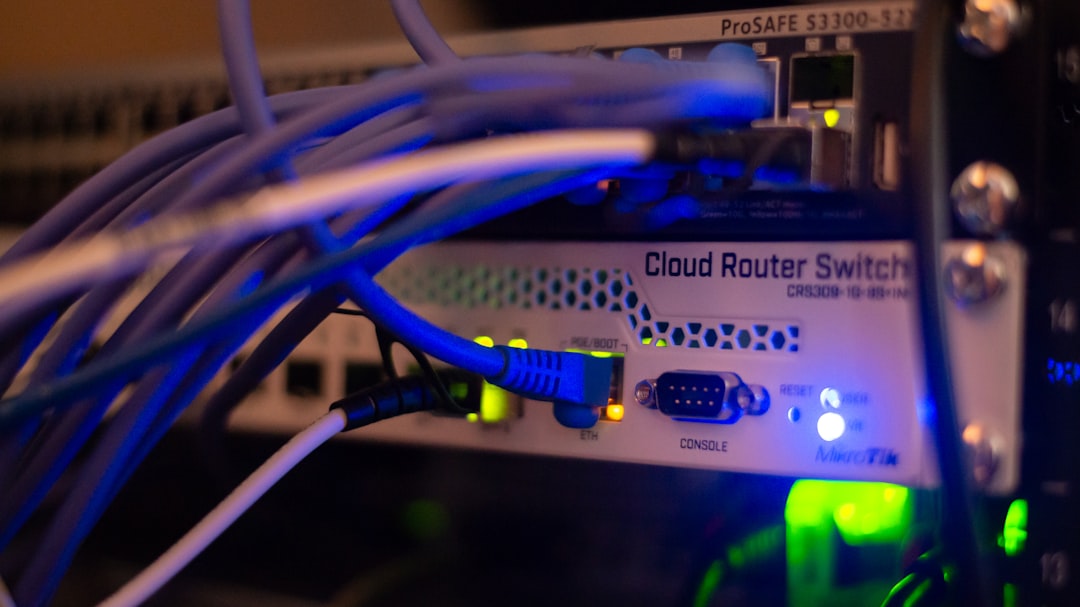
Photo by Albert Stoynov on Unsplash
OPNsense is an open source firewall and routing platform that replaces that consumer router with something you'd find in a small business — advanced firewalling, intrusion detection, VPN, VLANs, traffic shaping, and detailed logging. All managed through a clean web interface.

Why Replace Your Consumer Router?
| Feature | Consumer Router | OPNsense |
|---|---|---|
| Firewall rules | Basic (on/off per port) | Stateful, per-interface, aliases, schedules |
| VPN | Slow or unsupported | WireGuard and OpenVPN at full speed |
| VLANs | Rarely supported | Full 802.1Q support |
| DNS | Basic forwarding | Unbound resolver with DNSSEC |
| DHCP | Basic | ISC DHCP with static mappings, options |
| IDS/IPS | None | Suricata with ET rulesets |
| Updates | Abandoned after 1-2 years | Regular security updates |
| Logging | Minimal | Comprehensive, exportable |
| Traffic shaping | None or basic QoS | CoDel, FQ-CoDel, HFSC |
The short version: a consumer router is a black box with known vulnerabilities that never get patched. OPNsense gives you full visibility and control over your network.
When a consumer router is fine
- Your network is a flat LAN with a few devices and no IoT
- You don't need VPN access to your home network
- You don't care about network segmentation or traffic inspection
- You want zero maintenance
Hardware Requirements
OPNsense runs on x86 hardware. You have several options:
Budget build: Mini PC
A used or refurbished mini PC with dual NICs is the most popular choice:
- CPU: Intel N100 or similar (AES-NI required for VPN performance)
- RAM: 4 GB minimum, 8 GB recommended (especially for Suricata)
- Storage: 32 GB SSD minimum
- NICs: At least 2 Ethernet ports (WAN + LAN)
Popular choices: Protectli Vault, Topton mini PCs, or any mini PC with dual Intel NICs. Budget: $100-200 used, $150-300 new.
Repurposed hardware
Any old PC with two network interfaces works. Add a dual-port Intel NIC (i350-T2, around $25 used) to a machine with a low-power CPU and you're set.
Dedicated appliance
Deciso (the company behind OPNsense) sells official hardware. It's pricier but comes with support and guaranteed compatibility.
What to avoid
- Realtek NICs — They work but Intel NICs have better FreeBSD driver support (OPNsense is BSD-based)
- Underpowered CPUs without AES-NI — VPN throughput will suffer
- Less than 4 GB RAM if you plan to run Suricata
Installation
- Download the OPNsense ISO from opnsense.org
- Write it to a USB drive with
dd, Rufus, or Etcher - Boot from USB and follow the installer
- Select your WAN and LAN interfaces when prompted
- The installer writes to disk in about 5 minutes
After installation, connect a laptop to the LAN port and navigate to https://192.168.1.1. Default credentials: root / opnsense.
Initial setup wizard
The wizard walks you through:
- Hostname and domain — e.g.,
fw.home.lan - DNS servers — Use your preferred upstream (Cloudflare 1.1.1.1, Quad9 9.9.9.9, etc.)
- Time zone — Important for log accuracy
- WAN configuration — DHCP from your ISP in most cases
- LAN configuration — Set your LAN subnet (default 192.168.1.0/24)
- Admin password — Change it immediately
Want more networking guides? Get guides like this in your inbox — Self-Hosted Weekly delivers one free deep-dive every week.
Basic WAN/LAN Setup
WAN interface
For most home setups, WAN is configured as DHCP (your ISP assigns an IP). If you have PPPoE (common with DSL/fiber), configure that under Interfaces → WAN.
Important WAN settings:
- Block private networks — Enabled (prevents RFC1918 traffic from entering via WAN)
- Block bogon networks — Enabled (blocks unallocated IP ranges)
LAN interface
Default is 192.168.1.0/24 with OPNsense at 192.168.1.1. Customize the subnet if you prefer (10.0.0.0/24 is common to avoid conflicts with upstream networks).
DHCP and DNS
DHCP server
Under Services → DHCPv4, configure:
- Range: e.g., 192.168.1.100 - 192.168.1.254
- DNS servers: Point to OPNsense itself (192.168.1.1) to use its DNS resolver
- Static mappings: Assign fixed IPs to servers, printers, and IoT devices by MAC address
DNS resolver (Unbound)
OPNsense runs Unbound as a recursive DNS resolver. This means your DNS queries go directly to authoritative nameservers instead of through a third party.
Key settings under Services → Unbound DNS:
- DNSSEC: Enable for cryptographic validation of DNS responses
- DNS over TLS forwarding: Optionally forward to encrypted upstream resolvers
- Host overrides: Create local DNS entries (e.g.,
jellyfin.home.lan→ 192.168.1.50) - Domain overrides: Forward specific domains to other DNS servers
Firewall Rules
OPNsense evaluates firewall rules per-interface, top-to-bottom, first match wins. Understanding this is essential.
Default behavior
- WAN: Block all inbound traffic (good default, don't change it)
- LAN: Allow all outbound traffic (permissive default)
Creating rules
Example: Block IoT devices from accessing your LAN but allow internet access.
- Go to Firewall → Rules → IOT (assuming you've created a VLAN)
- Add a Block rule: Source = IOT net, Destination = LAN net
- Add an Allow rule: Source = IOT net, Destination = any
- The block rule is evaluated first, preventing IoT-to-LAN traffic, while the allow rule lets internet traffic through
Aliases
Aliases let you group IPs, ports, or networks and reference them in rules:
- DNS_Servers: 1.1.1.1, 9.9.9.9
- Management_Devices: Your laptop and phone IPs
- Blocked_Countries: GeoIP lists
This keeps rules readable. Instead of "allow traffic from 192.168.1.10, 192.168.1.11, 192.168.1.15 to port 443," you create an alias called "Trusted_Clients" and reference it.
VPN with WireGuard
OPNsense has built-in WireGuard support for fast, modern VPN access to your home network.
Server setup
- Go to VPN → WireGuard → Instances
- Create a new instance:
- Listen port: 51820
- Generate keypair
- Tunnel address: 10.10.10.1/24
- Under Peers, add each client device with its public key and allowed IP
Firewall rules for WireGuard
- WAN rule: Allow UDP 51820 inbound (so clients can connect)
- WireGuard interface rule: Allow traffic from WireGuard peers to LAN
Client configuration
Generate a config file for each client:
[Interface]
PrivateKey = <client-private-key>
Address = 10.10.10.2/24
DNS = 192.168.1.1

[Peer]
PublicKey = <server-public-key>
Endpoint = your-home-ip:51820
AllowedIPs = 192.168.1.0/24, 10.10.10.0/24
PersistentKeepalive = 25
WireGuard gives you full LAN access from anywhere — your phone, laptop, or a remote server — with minimal overhead. On modern hardware, expect near-line-speed VPN throughput.
IDS/IPS with Suricata
Suricata is a network intrusion detection and prevention system. OPNsense integrates it directly.
Setup
- Go to Services → Intrusion Detection → Administration
- Enable IDS (detection only first — don't block traffic until you've tuned it)
- Under Download, enable ET Open rulesets and click Download
- Select relevant rule categories (malware, exploit, policy violations)
IDS vs. IPS
- IDS mode: Logs threats but doesn't block them. Start here.
- IPS mode: Actively drops malicious traffic. Switch to this after you've verified no false positives.
Performance considerations
Suricata is RAM and CPU intensive. With a full ruleset:
- 4 GB RAM: Tight. May need to limit rule categories.
- 8 GB RAM: Comfortable for home use.
- Multi-core CPU: Suricata uses multiple cores effectively.
Monitor your firewall's resource usage after enabling Suricata. If it's pegging the CPU, disable rule categories you don't need.
VLANs: Network Segmentation
VLANs let you create separate networks on a single physical switch. Common use cases:
- IoT VLAN: Isolate smart home devices from your main network
- Guest VLAN: Internet access only, no LAN access
- Lab VLAN: Experimental services that shouldn't touch production
- Security cameras: Isolated from internet access entirely
Creating a VLAN
- Interfaces → Other Types → VLAN: Create VLAN (e.g., tag 20, parent = LAN)
- Interfaces → Assignments: Assign the new VLAN as an interface (e.g., "IOT")
- Configure the interface: Set a subnet (e.g., 192.168.20.0/24, gateway 192.168.20.1)
- Enable DHCP for the new VLAN under Services → DHCPv4
- Add firewall rules on the VLAN interface
- Configure your managed switch to tag the appropriate ports with VLAN 20
Your IoT devices now live on a separate network segment. They can reach the internet but can't see or access devices on your main LAN.
OPNsense vs. pfSense
OPNsense forked from pfSense in 2015. Both are FreeBSD-based firewalls, but they've diverged significantly:
| Feature | OPNsense | pfSense |
|---|---|---|
| License | BSD (fully open) | Apache 2.0 (with trademark restrictions) |
| UI | Modern, responsive | Functional but dated |
| WireGuard | Built-in, stable | Removed, then re-added, rocky history |
| Plugins | Large repository | Smaller, more curated |
| Update frequency | Weekly security updates | Less frequent |
| Company | Deciso (Netherlands) | Netgate (US) |
| Community | Growing, active | Large, established |
| API | RESTful, well-documented | XML-RPC (older) |
Choose OPNsense if you want a modern UI, built-in WireGuard, frequent updates, and a fully open source project.
Choose pfSense if you want the larger community, more third-party documentation, and commercial TAC support from Netgate.
Both are excellent. OPNsense has been gaining momentum in the self-hosting community due to its cleaner interface and more transparent development.
The Honest Trade-offs
OPNsense is great if:
- You want real network segmentation and security
- You need a reliable VPN to access your home network remotely
- You want visibility into what's happening on your network
- You're interested in learning networking fundamentals
OPNsense is not ideal if:
- You just want Wi-Fi and internet — a consumer mesh system is simpler
- You don't own a managed switch (VLANs require one)
- You have no interest in maintaining network infrastructure
- You need Wi-Fi built in (OPNsense is a router/firewall; use separate access points)
Bottom line: Replacing your consumer router with OPNsense is one of the highest-impact self-hosting projects you can do. It gives you proper network segmentation, a real firewall, fast VPN, and intrusion detection — things that consumer routers simply can't provide. The learning curve is moderate, and the OPNsense documentation is excellent. Pair it with a managed switch and dedicated Wi-Fi access points for the best results.