
Self-Hosting Traefik: The Modern Reverse Proxy for Your Home Lab
Every self-hosted service needs a way to be reached. You can expose each one on a different port and remember that Grafana is :3000, Nextcloud is :8080, and Gitea is :3001 — or you can put a reverse proxy in front of everything and access them at grafana.yourdomain.com, cloud.yourdomain.com, and git.yourdomain.com with automatic HTTPS.
Photo by Minseok Kwak on Unsplash
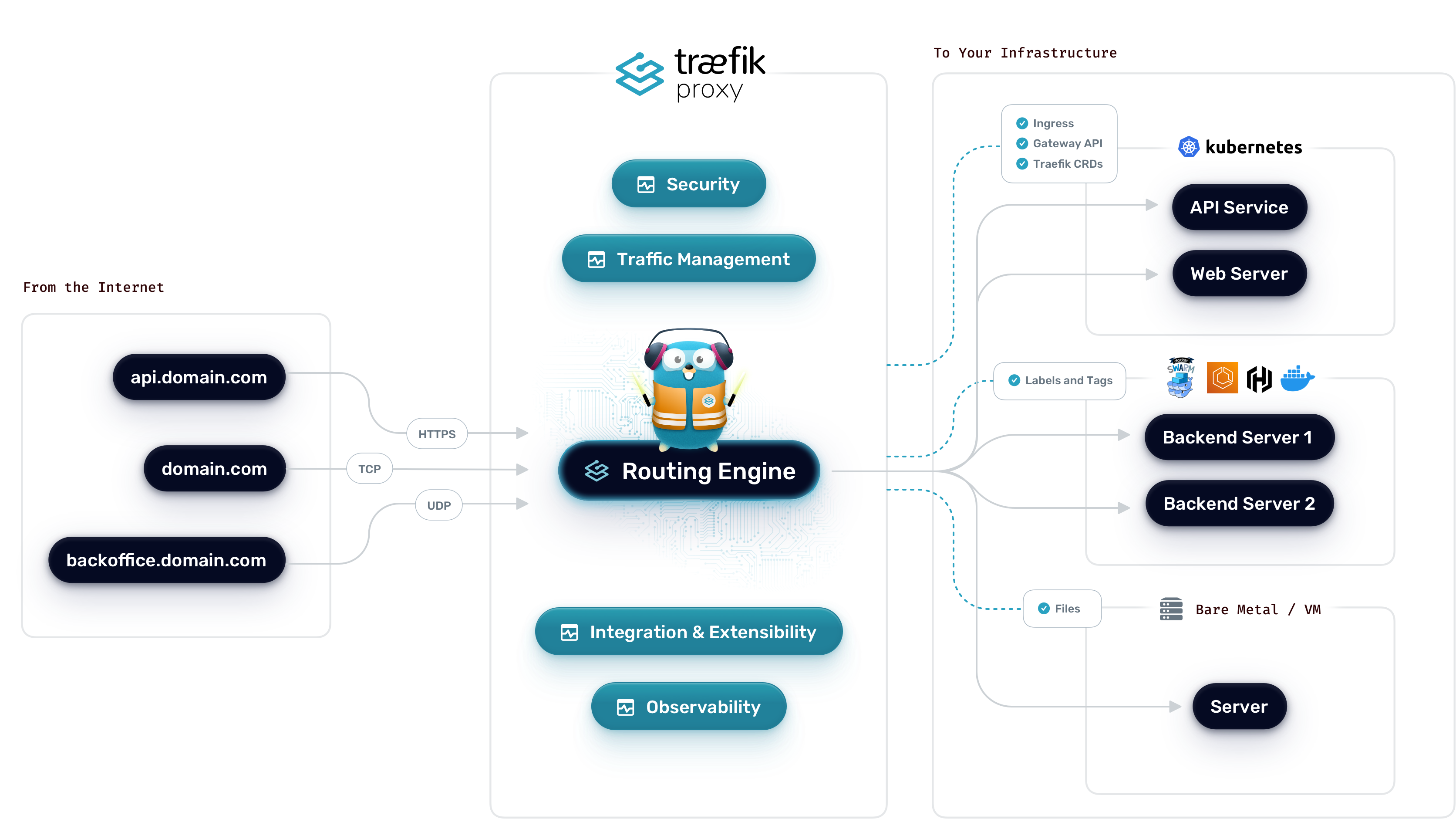
Traefik is a modern reverse proxy built specifically for dynamic environments. It watches your Docker containers (or Kubernetes pods, or Consul services) and automatically configures routing as services start and stop. No config file reloads, no manual nginx blocks — you add a few labels to a container and Traefik picks it up within seconds.
Traefik vs. Other Reverse Proxies
| Feature | Traefik | Nginx Proxy Manager | Caddy | Plain Nginx |
|---|---|---|---|---|
| Auto-discovery (Docker) | Built-in | Via companion | No | No |
| Auto HTTPS (Let's Encrypt) | Built-in | Built-in | Built-in | Manual / Certbot |
| Configuration style | Labels + YAML/TOML | Web GUI | Caddyfile | Config files |
| Learning curve | Moderate-steep | Low | Low-moderate | Moderate |
| Middleware (auth, rate limit) | Extensive, built-in | Limited | Moderate | Via modules |
| Dashboard | Built-in | Built-in (main UI) | None | Third-party |
| Resource usage | ~50-80 MB RAM | ~150-200 MB RAM | ~30-50 MB RAM | ~10-30 MB RAM |
| Best for | Docker-heavy setups | Beginners, GUI fans | Simplicity | Static configs |
When Traefik is the right choice
- You run most of your services in Docker containers
- You frequently add, remove, or update services
- You want routing configuration to live alongside your service definitions (as Docker labels)
- You need advanced middleware like forward auth, rate limiting, or circuit breakers
When to pick something else
- Nginx Proxy Manager: You want a point-and-click web UI and don't mind managing routes manually. Great for beginners or small setups.
- Caddy: You want the simplest possible config files and don't need Docker auto-discovery. Caddy's
Caddyfileis remarkably readable. - Plain Nginx: You need maximum performance, are comfortable with config files, and don't mind manually managing certificates.
Core Concepts
Before diving into setup, it helps to understand Traefik's mental model. It has four key building blocks:
- Entrypoints — The ports Traefik listens on (typically 80 for HTTP and 443 for HTTPS)
- Routers — Rules that match incoming requests (e.g., "Host is
grafana.yourdomain.com") and direct them to a service - Services — The actual backend your traffic gets forwarded to (your Docker container)
- Middlewares — Transformations applied to requests between the router and service (authentication, headers, rate limiting, redirects)
The flow is: Entrypoint → Router → Middleware(s) → Service.
Setting Up Traefik with Docker Compose
Prerequisites
- A server with Docker and Docker Compose installed
- A domain name with DNS pointing to your server (A record or wildcard
*.yourdomain.com) - Ports 80 and 443 open in your firewall
Docker Compose
services:
  traefik:
    image: traefik:v3.3
    container_name: traefik
    restart: unless-stopped
    ports:
      - "80:80"
      - "443:443"
    volumes:
      - /var/run/docker.sock:/var/run/docker.sock:ro
      - ./traefik.yml:/etc/traefik/traefik.yml:ro
      - ./acme.json:/acme.json
    networks:
      - proxy

networks:
  proxy:
    name: proxy
The Docker socket mount (/var/run/docker.sock) is what gives Traefik the ability to watch for container changes. The :ro flag makes it read-only, which limits the security exposure — but be aware that even read-only Docker socket access has implications. More on that later.
Static configuration
Create traefik.yml — this is Traefik's static configuration that defines entrypoints and providers:
api:
  dashboard: true
  insecure: false

entryPoints:
  web:
    address: ":80"
    http:
      redirections:
        entryPoint:
          to: websecure
          scheme: https
  websecure:
    address: ":443"

providers:
  docker:
    endpoint: "unix:///var/run/docker.sock"
    exposedByDefault: false
    network: proxy

certificatesResolvers:
  letsencrypt:
    acme:
      email: [email protected]
      storage: acme.json
      httpChallenge:
        entryPoint: web
Key decisions in this config:
exposedByDefault: false— Containers are NOT automatically exposed. You must explicitly opt in withtraefik.enable=truelabels. This is a sane security default.- HTTP → HTTPS redirect — All port 80 traffic is redirected to port 443 automatically.
- Let's Encrypt via HTTP challenge — Traefik will automatically obtain and renew TLS certificates for every service you expose.
Prepare the certificate storage
touch acme.json
chmod 600 acme.json
Traefik requires this file to exist with restrictive permissions before it will write certificates to it.
Start Traefik
docker compose up -d
Want more infrastructure guides? Get guides like this in your inbox — Self-Hosted Weekly delivers one free deep-dive every week.
Routing to Your First Service
Here's how to put a service behind Traefik. Add these labels to any Docker Compose service:
services:
  grafana:
    image: grafana/grafana:latest
    container_name: grafana
    restart: unless-stopped
    networks:
      - proxy
    labels:
      - "traefik.enable=true"
      - "traefik.http.routers.grafana.rule=Host(`grafana.yourdomain.com`)"
      - "traefik.http.routers.grafana.entrypoints=websecure"
      - "traefik.http.routers.grafana.tls.certresolver=letsencrypt"
      - "traefik.http.services.grafana.loadbalancer.server.port=3000"

networks:
  proxy:
    external: true
That's it. Start this container and within a few seconds, https://grafana.yourdomain.com is live with a valid Let's Encrypt certificate. No config files to edit, no reload commands, no certificate management.
When you stop or remove the container, Traefik automatically removes the route. This is the killer feature — your proxy configuration is always in sync with your running services.
Multiple services
Each new service follows the same pattern. Just change the router name, hostname rule, and backend port:
labels:
  - "traefik.enable=true"
  - "traefik.http.routers.nextcloud.rule=Host(`cloud.yourdomain.com`)"
  - "traefik.http.routers.nextcloud.entrypoints=websecure"
  - "traefik.http.routers.nextcloud.tls.certresolver=letsencrypt"
  - "traefik.http.services.nextcloud.loadbalancer.server.port=80"
Middleware: Where Traefik Gets Powerful
Middlewares are transformations applied to requests before they reach your backend. You can chain multiple middlewares together.
Basic authentication
Protect a service with username/password when it has no built-in auth:
labels:
  - "traefik.http.middlewares.myauth.basicauth.users=admin:$$apr1$$xyz...$$hash"
  - "traefik.http.routers.myservice.middlewares=myauth"
Generate the password hash with:
htpasswd -nb admin your-password
Note: In Docker labels, you must escape $ signs by doubling them ($$).
Rate limiting
Prevent abuse on public-facing services:
labels:
  - "traefik.http.middlewares.ratelimit.ratelimit.average=100"
  - "traefik.http.middlewares.ratelimit.ratelimit.burst=50"
  - "traefik.http.routers.myservice.middlewares=ratelimit"
Security headers
Add security headers to all responses:
labels:
  - "traefik.http.middlewares.secheaders.headers.stsSeconds=31536000"
  - "traefik.http.middlewares.secheaders.headers.stsIncludeSubdomains=true"
  - "traefik.http.middlewares.secheaders.headers.contentTypeNosniff=true"
  - "traefik.http.middlewares.secheaders.headers.browserXssFilter=true"
  - "traefik.http.middlewares.secheaders.headers.frameDeny=true"
Forward authentication (with Authelia or similar)
For a proper SSO setup, use forward auth middleware to delegate authentication to Authelia, Authentik, or any other auth provider:
labels:
  - "traefik.http.middlewares.authelia.forwardauth.address=http://authelia:9091/api/authz/forward-auth"
  - "traefik.http.middlewares.authelia.forwardauth.trustForwardHeader=true"
  - "traefik.http.middlewares.authelia.forwardauth.authResponseHeaders=Remote-User,Remote-Groups,Remote-Email"
Then apply it to any service:
labels:
  - "traefik.http.routers.myservice.middlewares=authelia"
Chaining middlewares
You can apply multiple middlewares to a single router:
labels:
  - "traefik.http.routers.myservice.middlewares=authelia,secheaders,ratelimit"
They execute in the order listed.
The Traefik Dashboard
Traefik includes a built-in dashboard that shows all active routers, services, middlewares, and their health. It's genuinely useful for debugging routing issues.
To expose it securely, add labels to the Traefik service itself:
services:
  traefik:
    # ... existing config ...
    labels:
      - "traefik.enable=true"
      - "traefik.http.routers.dashboard.rule=Host(`traefik.yourdomain.com`)"
      - "traefik.http.routers.dashboard.entrypoints=websecure"
      - "traefik.http.routers.dashboard.tls.certresolver=letsencrypt"
      - "traefik.http.routers.dashboard.service=api@internal"
      - "traefik.http.routers.dashboard.middlewares=authelia"
Always protect the dashboard with authentication. It exposes your entire routing topology, and in older versions, the API endpoint could be used to modify configuration.
Common Pitfalls
Docker socket security
Mounting the Docker socket gives Traefik visibility into all your containers. Even read-only, this is a sensitive permission — a compromised Traefik instance could enumerate your entire infrastructure. Mitigations:
- Use a Docker socket proxy like Tecnativa/docker-socket-proxy that only exposes the API endpoints Traefik needs
- Run Traefik in its own network namespace
- Keep Traefik updated
The acme.json permissions trap
If acme.json doesn't exist or has wrong permissions before you start Traefik, certificate issuance silently fails. Always run touch acme.json && chmod 600 acme.json before the first startup.
Let's Encrypt rate limits
Let's Encrypt limits you to 50 certificates per registered domain per week. During initial setup, use the staging server to avoid hitting limits:
certificatesResolvers:
  letsencrypt:
    acme:
      caServer: "https://acme-staging-v02.api.letsencrypt.org/directory"
      # ... rest of config
Remove the caServer line once everything works.
Network connectivity between containers
Traefik can only route to containers on a shared Docker network. If your service is on its own network and not on the proxy network, Traefik will accept the request but return a 502 Bad Gateway. This is the single most common debugging issue.
Verbose label syntax
There's no getting around it — Traefik's Docker label syntax is verbose. A simple route requires 4-5 labels. For setups with many services, this adds up. Some people mitigate this by using Traefik's file provider for shared middleware definitions instead of duplicating labels across services:
# dynamic-config.yml (mounted into Traefik)
http:
  middlewares:
    secheaders:
      headers:
        stsSeconds: 31536000
        stsIncludeSubdomains: true
        contentTypeNosniff: true
        browserXssFilter: true
        frameDeny: true
Then reference it in labels as secheaders@file instead of redefining it everywhere.
Wildcard Certificates with DNS Challenge
If you use a wildcard domain (*.yourdomain.com), you can get a single wildcard certificate instead of individual ones per service. This requires the DNS challenge instead of HTTP:
certificatesResolvers:
  letsencrypt:
    acme:
      email: [email protected]
      storage: acme.json
      dnsChallenge:
        provider: cloudflare
        resolvers:
          - "1.1.1.1:53"
          - "8.8.8.8:53"
You'll need to set your DNS provider's API credentials as environment variables (e.g., CF_API_EMAIL and CF_DNS_API_TOKEN for Cloudflare). Traefik supports dozens of DNS providers out of the box.
Wildcard certs are particularly convenient for homelabs where you're constantly adding new subdomains.
Should You Use Traefik?
Traefik is the right choice if:
- You run a Docker-heavy homelab and want routing to update automatically as containers come and go
- You need advanced middleware (forward auth, rate limiting, circuit breakers) without cobbling together nginx modules
- You're comfortable with YAML configuration and Docker labels
- You plan to scale — Traefik handles load balancing, multiple backends, and health checks natively
Traefik is not the right choice if:
- You want the simplest possible setup — Nginx Proxy Manager's web UI or Caddy's four-line Caddyfile will get you running faster
- You only have two or three static services that rarely change — the auto-discovery benefit doesn't justify the learning curve
- You prefer editing a flat config file over scattering configuration across Docker labels
- You're not using Docker — Traefik works without it, but its biggest advantage disappears
The honest trade-off: Traefik has a steeper learning curve than Nginx Proxy Manager or Caddy. The label syntax is verbose, the documentation assumes you already understand reverse proxy concepts, and debugging routing issues requires understanding how entrypoints, routers, services, and middlewares interact. But once you've internalized the model, Traefik is the most powerful and flexible option for a Docker-based homelab. You configure each service where it's defined, routing stays in sync automatically, and the middleware system handles everything from basic auth to complex SSO chains.
For Docker-heavy homelabs where services come and go frequently, Traefik is worth the investment. For simpler setups, start with Caddy or Nginx Proxy Manager and migrate later if you outgrow them.
Resources
- Traefik documentation
- Traefik GitHub
- Docker provider reference — all available Docker label options
- Supported DNS providers — for wildcard certificate DNS challenges
- Traefik community forums — helpful for troubleshooting