Dockge: The Simplest Docker Compose Manager
Dockge (pronounced "docksy") is a Docker Compose stack manager from the creator of Uptime Kuma. It does one thing: give you a web UI for managing docker-compose.yml files. No Kubernetes support, no Swarm mode, no image registry — just a clean interface for the thing most self-hosters actually use.
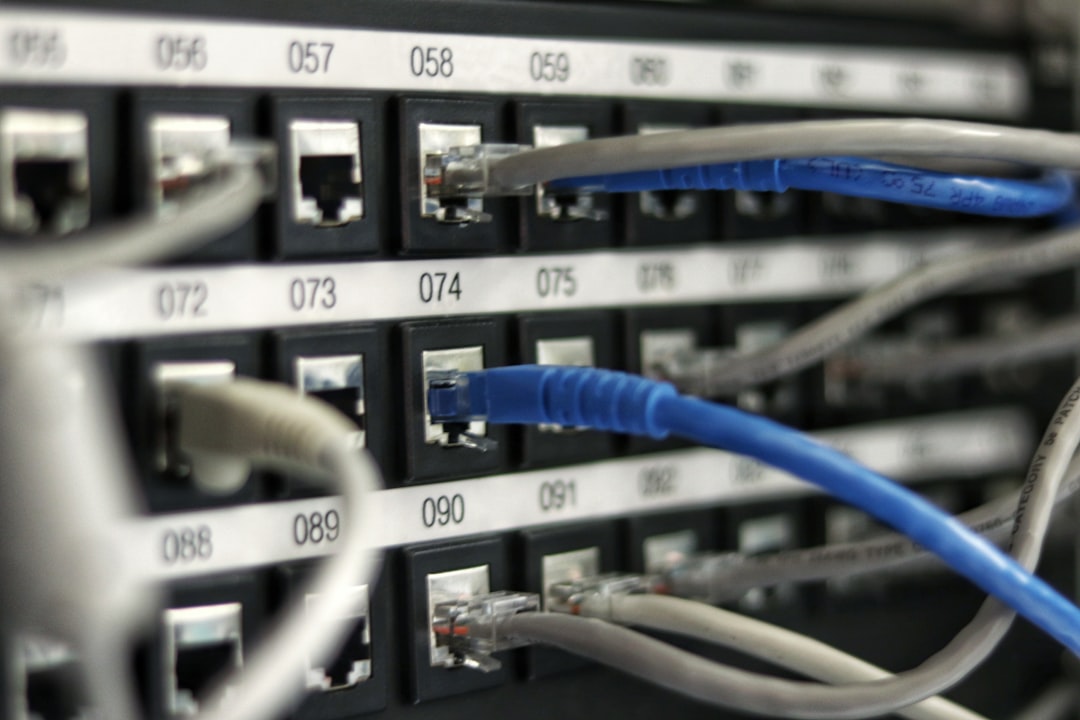
Photo by Jordan Harrison on Unsplash

Why Dockge?
If you manage your self-hosted services with Docker Compose (and you probably should), your workflow looks like this:
- SSH into your server
cdto the right directory- Edit
docker-compose.yml - Run
docker compose up -d - Check logs if something breaks
Dockge replaces steps 1-5 with a web UI while keeping your compose files as plain YAML files on disk. Unlike Portainer, which wraps everything in its own abstraction layer, Dockge works with your existing files directly.
Key strengths:
- Real compose files — Your stacks are standard docker-compose.yml files, stored where you expect them
- Interactive editor — YAML editor with syntax highlighting and a form-based editor for common fields
- Terminal — Built-in terminal for each container
- Logs — Live log streaming per container
- Multiple agents — Manage stacks across multiple servers from one UI
- Lightweight — ~50 MB RAM, written in Node.js
Installation
Dockge expects a specific directory structure. It manages stacks in a stacks directory (default: /opt/stacks/):
mkdir -p /opt/stacks /opt/dockge
# /opt/dockge/docker-compose.yml
services:
  dockge:
    image: louislam/dockge:1
    container_name: dockge
    ports:
      - "5001:5001"
    volumes:
      - /var/run/docker.sock:/var/run/docker.sock
      - dockge_data:/app/data
      - /opt/stacks:/opt/stacks
    environment:
      - DOCKGE_STACKS_DIR=/opt/stacks
    restart: unless-stopped

volumes:
  dockge_data:
cd /opt/dockge && docker compose up -d
Access the UI at http://your-server:5001 and create an admin account.
Managing Stacks
Creating a New Stack
Click "Compose" and either:
- Paste an existing docker-compose.yml — Dockge validates the YAML and creates the stack
- Use the form editor — Click "Add Service" and fill in image, ports, volumes, environment variables through form fields
Dockge saves the compose file to /opt/stacks/<stack-name>/docker-compose.yml — a real file you can edit with any text editor.
Stack Operations
Each stack has controls for:
- Up —
docker compose up -d - Down —
docker compose down - Restart — Restarts all containers in the stack
- Update — Pulls latest images and recreates containers
- Delete — Stops containers and removes the compose file
Migrating Existing Stacks
If you already have compose files scattered across your server, move them into the stacks directory:
# Move an existing stack
mv /home/user/jellyfin /opt/stacks/jellyfin

# Or symlink if you don't want to move
ln -s /home/user/jellyfin /opt/stacks/jellyfin
Restart Dockge and it will detect the existing stacks.
Environment Variables
Dockge supports .env files alongside your compose files. Create /opt/stacks/<stack-name>/.env and reference variables in your compose file as usual:
services:
  app:
    image: myapp:latest
    environment:
      - DATABASE_URL=${DATABASE_URL}
      - SECRET_KEY=${SECRET_KEY}
The .env file is editable through Dockge's UI alongside the compose file.
Want more infrastructure guides? Get guides like this in your inbox — Self-Hosted Weekly delivers one free deep-dive every week.
Multi-Server Management
Dockge supports an agent architecture for managing stacks across multiple servers:
- Install the Dockge agent on each remote server
- Connect agents to your main Dockge instance
- Create and manage stacks on any connected server from one UI
This is useful when you have services split across a homelab server, a VPS, and maybe a Raspberry Pi.
Dockge vs Portainer vs Yacht
| Feature | Dockge | Portainer | Yacht |
|---|---|---|---|
| Focus | Docker Compose only | Full Docker/K8s/Swarm | Docker containers |
| Compose files | Real files on disk | Stored in Portainer DB | Not file-based |
| Editor | YAML + form | Form-based | Form-based |
| Container terminal | Yes | Yes (paid for agents) | Yes |
| Multi-server | Agent-based | Agent-based (paid) | No |
| Memory usage | ~50 MB | ~200 MB | ~100 MB |
| Templates | No | App templates | Templates |
| Learning curve | Very low | Medium | Low |
| Stack updates | One-click pull | Manual per container | Manual |
| File access | Direct filesystem | Abstracted | Abstracted |
Choose Dockge When
- You want to keep using standard docker-compose.yml files
- You want a simple, focused tool without feature bloat
- You SSH into your server less than you'd like to
- You want one-click updates for your stacks
Choose Portainer When
- You need Kubernetes or Swarm support
- You want app templates for quick deployments
- You need role-based access control
- You're managing a team environment
Choose Yacht When
- You primarily work with individual containers (not compose stacks)
- You want a simpler alternative to Portainer
- You like template-based deployments
Practical Tips
Keep Stacks Organized
Use descriptive stack names that sort well:
/opt/stacks/
├── media-jellyfin/
├── media-sonarr/
├── infra-traefik/
├── infra-monitoring/
├── prod-nextcloud/
└── prod-vaultwarden/
Back Up Your Stacks
Since everything is in /opt/stacks/, backing up is simple:
tar -czf stacks-backup-$(date +%F).tar.gz /opt/stacks/
This captures all your compose files, .env files, and any configuration mounted from the stack directories.
Use with a Reverse Proxy
Put Dockge behind your reverse proxy (Caddy, Traefik, Nginx) and add authentication. Dockge has built-in auth, but an extra layer doesn't hurt when you're exposing Docker socket access.
Verdict
Dockge is the tool Docker Compose users didn't know they needed. It doesn't try to replace your workflow — it just makes it more convenient. Your compose files stay where they are, in a format you already know, accessible through a clean web UI.
If Portainer feels like overkill and you mostly just want a nicer way to manage your docker compose up -d commands, Dockge is exactly right. The fact that it works with real files on disk, rather than storing everything in its own database, means you can always fall back to the command line without losing anything.