
Self-Hosting Authelia: Add Single Sign-On to All Your Services
When you self-host a dozen services, you end up with a dozen separate logins. Some have decent authentication, some have weak passwords, and some have no authentication at all beyond "it's on my local network so it's fine."
Photo by elias brito on Unsplash
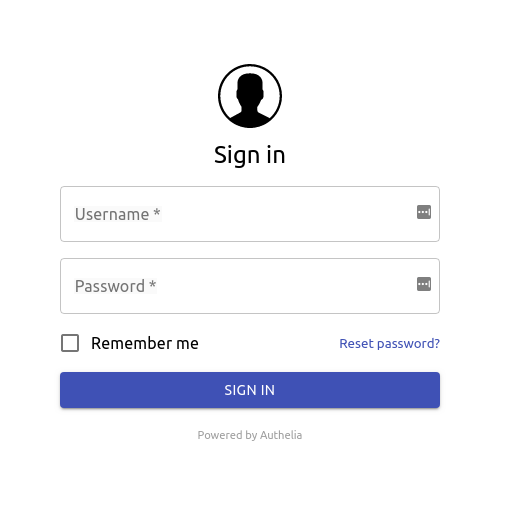
Authelia is a self-hosted authentication server that sits in front of your services and provides single sign-on (SSO), two-factor authentication (2FA), and access control — for everything. Log in once, and you're authenticated everywhere.
Why You Need an Auth Layer
If you're running multiple self-hosted services behind a reverse proxy, you likely have some combination of:
- Services with their own login pages (Grafana, Nextcloud)
- Services with basic auth only (many admin panels)
- Services with no authentication at all (static dashboards, custom tools)
- Different passwords for everything
This is a security problem and a usability problem. Authelia solves both.
What Authelia provides
- Single sign-on — One login for all your services
- Two-factor authentication — TOTP (Google Authenticator), WebAuthn (hardware keys), or push notifications via Duo
- Access control policies — Require different auth levels for different services
- Session management — Configurable session lifetime and inactivity timeouts
- Brute force protection — Automatic rate limiting and account lockout
Authelia vs. Alternatives
| Feature | Authelia | Authentik | Keycloak |
|---|---|---|---|
| Resource usage | Very low (~50 MB RAM) | Moderate (~500 MB) | High (~1 GB+) |
| Setup complexity | Simple (single service) | Moderate | Complex |
| OIDC / OAuth2 | Yes | Yes | Yes |
| LDAP support | As client | Full provider | Full provider |
| Web interface | Minimal (login portal) | Full admin UI | Full admin UI |
| User management | File or LDAP | Built-in | Built-in |
| Best for | Homelab SSO | Medium deployments | Enterprise |
When to pick Authelia
- You want simple SSO with minimal resource usage
- You're protecting services behind a reverse proxy (Traefik, Caddy, nginx)
- You don't need a full identity provider with user self-service portals
- You value small, focused tools over feature-heavy platforms
When to pick alternatives
- Authentik: When you need a full identity provider with user management, self-service password resets, and enrollment flows.
- Keycloak: When you need enterprise-grade identity management with SAML, LDAP, Kerberos, and complex organization structures.
For most homelabs and small deployments, Authelia hits the sweet spot of capability vs. complexity.
How Authelia Works
The architecture is straightforward:
User → Reverse Proxy → Authelia → Your Service
- User tries to access
grafana.yourdomain.com - Reverse proxy checks with Authelia: "Is this user authenticated?"
- If not: redirect to Authelia's login portal
- User logs in (with optional 2FA)
- Authelia sets a session cookie
- Reverse proxy forwards the request to Grafana
- Subsequent requests skip the login — the session cookie is valid
Want more security guides? Get guides like this in your inbox — Self-Hosted Weekly delivers one free deep-dive every week.
Self-Hosting Authelia: Setup
Prerequisites
- A reverse proxy (Traefik, Caddy, or nginx)
- A domain name with wildcard DNS or individual subdomains for your services
- Docker and Docker Compose
Docker Compose setup
services:
  authelia:
    image: authelia/authelia:latest
    container_name: authelia
    ports:
      - "9091:9091"
    volumes:
      - ./config:/config
    environment:
      TZ: America/Los_Angeles
    restart: unless-stopped
Configuration
Authelia uses a YAML configuration file. Create config/configuration.yml:
server:
  address: 'tcp://0.0.0.0:9091/'

log:
  level: info

authentication_backend:
  file:
    path: /config/users_database.yml

session:
  secret: a-long-random-string-here
  cookies:
    - domain: yourdomain.com
      authelia_url: https://auth.yourdomain.com

storage:
  local:
    path: /config/db.sqlite3

notifier:
  filesystem:
    filename: /config/notification.txt

access_control:
  default_policy: deny
  rules:
    - domain: "public.yourdomain.com"
      policy: bypass

    - domain: "*.yourdomain.com"
      policy: two_factor

totp:
  issuer: yourdomain.com
User database
Create config/users_database.yml:
users:
  yourname:
    displayname: "Your Name"
    password: "$argon2id$..."  # generate with: authelia crypto hash generate argon2
    email: [email protected]
Generate the password hash:
docker run --rm authelia/authelia:latest \
  authelia crypto hash generate argon2 --password 'your-secure-password'
Reverse proxy integration (Traefik example)
Add these labels to your Traefik configuration for any service you want to protect:
labels:
  - "traefik.http.routers.grafana.middlewares=authelia@docker"
And add Authelia as a ForwardAuth middleware:
# On the Authelia service
labels:
  - "traefik.http.middlewares.authelia.forwardAuth.address=http://authelia:9091/api/authz/forward-auth"
  - "traefik.http.middlewares.authelia.forwardAuth.trustForwardHeader=true"
  - "traefik.http.middlewares.authelia.forwardAuth.authResponseHeaders=Remote-User,Remote-Groups,Remote-Email"
Caddy integration
If you use Caddy, the configuration is simpler:
grafana.yourdomain.com {
    forward_auth authelia:9091 {
        uri /api/authz/forward-auth
        copy_headers Remote-User Remote-Groups Remote-Email
    }
    reverse_proxy grafana:3000
}
Setting Up Two-Factor Authentication
After your first login, Authelia will prompt you to set up 2FA:
- TOTP (recommended for most users) — Scan a QR code with Google Authenticator, Authy, or any TOTP app
- WebAuthn (hardware keys) — Use a YubiKey or similar hardware security key for the strongest protection
- Duo Push — Push notifications to your phone (requires Duo account)
You can require different authentication levels for different services using access control policies:
access_control:
  rules:
    # Public services — no auth required
    - domain: "public.yourdomain.com"
      policy: bypass

    # Low-security services — password only
    - domain: "rss.yourdomain.com"
      policy: one_factor

    # Everything else — password + 2FA
    - domain: "*.yourdomain.com"
      policy: two_factor
The Honest Trade-offs
Authelia is great if:
- You run multiple self-hosted services and want unified login
- You want 2FA on services that don't natively support it
- You're already using a reverse proxy
- You want minimal resource overhead
Authelia is not ideal if:
- You only have one or two services (just use their built-in auth)
- You need a full identity provider with user self-registration and LDAP
- You don't use a reverse proxy and don't want to set one up
Bottom line: If you self-host more than three or four services, Authelia is almost a necessity. It turns your hodgepodge of login screens into a unified, secure authentication layer. The setup is a one-time investment that immediately improves both security and usability across your entire homelab.
Resources
- Authelia documentation
- Authelia GitHub
- Integration guides — detailed guides for Traefik, Caddy, nginx, HAProxy, and more
- Example Docker Compose setups